Securing your Amazon S3 buckets: Identifying and remediating over-permissioned access
August 7, 2026 · AWS Security · Severity: LOW
This AWS Security post explains how to identify and fix over-permissioned S3 buckets, providing a workflow framework and recommendations for security teams.
Misconfigured Amazon Simple Storage Service (Amazon S3) buckets can expose your data to unauthorized access. Without proactive review, S3 bucket policies or Access Control Lists (ACLs) configured with broad access may go unnoticed in your environment. In this post, you learn how to identify and fix over-permissioned S3 buckets across your AWS environment, along with best practice recommendations and automation opportunities to help you prevent security gaps. This post provides a workflow framework and methodology recommendations for your security team to adapt. The focus of this post is on the what and why rather than a prescriptive implementation. You will need to customize the approach based on your organization’s requirements and existing security tooling.
This solution is intended for security engineers, cloud architects, and DevOps teams managing single- or multiple-account AWS environments with Amazon S3 workloads that require access management.
Prerequisites
Before you begin, make sure you have the following in place:
- Ensure you have an AWS account with permissions to create AWS Lambda functions, AWS Identity and Access Management (IAM) roles, and Amazon Simple Notification Service (Amazon SNS) topics.
- You will also need the AWS Command Line Interface (AWS CLI) or AWS SDK installed locally.
- For multi-account environments, AWS Organizations should already be configured.
- Basic familiarity with IAM policies and Python will help you customize the solution to your needs.
Solution overview
This solution uses a five-phase workflow diagram to detect, remediate, and continuously monitor over-permissioned S3 buckets across your AWS accounts. The following workflow diagram illustrates the high-level end-to-end process for identifying and remediating over-permissioned S3 buckets across your Amazon Web Services (AWS) environment.
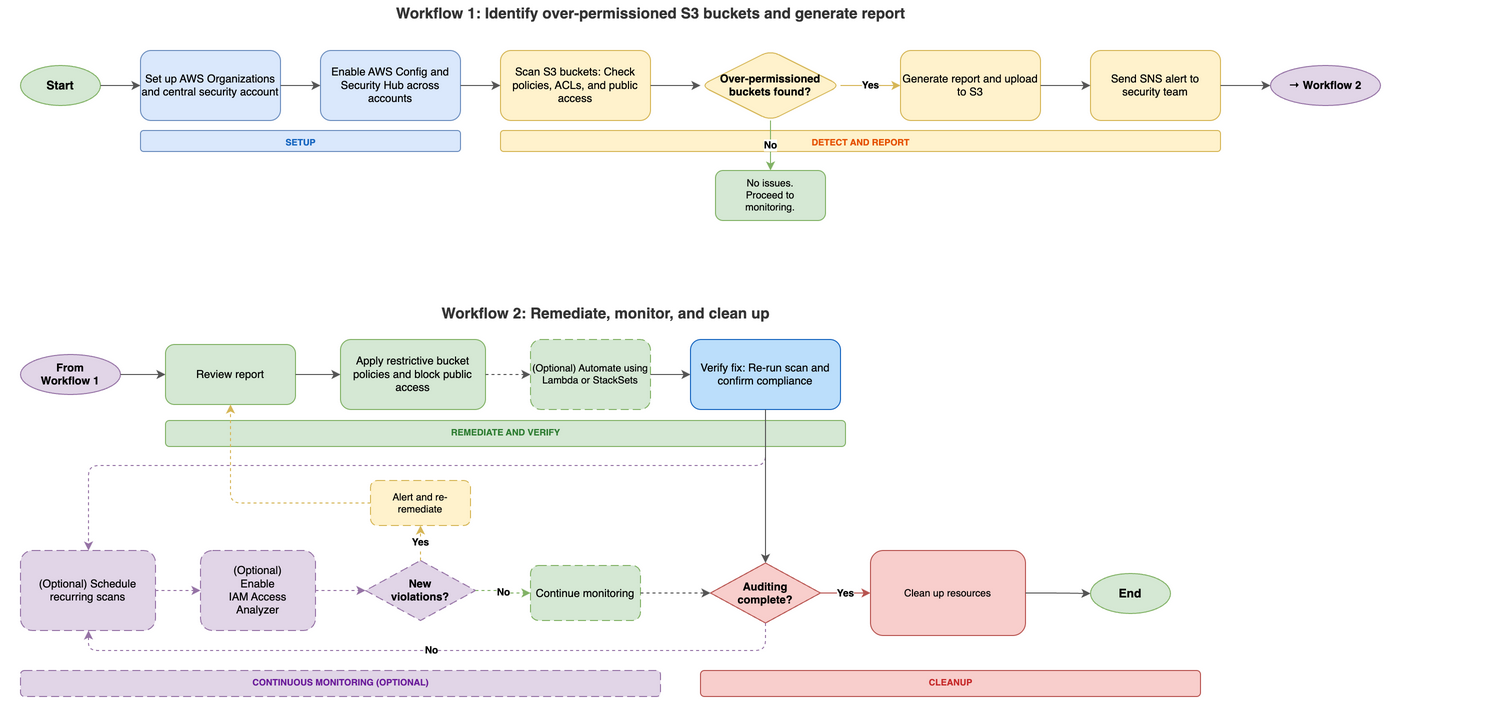
Figure 1: Amazon S3 over-permissive access – Detection, remediation, monitoring and cleanup workflow
The diagram in Figure 1 consists of five phases:
- Setup and prerequisites – Configure AWS Organizations or multi-account access, designate a central security account, deploy AWS Config across all accounts, and enable AWS Security Hub with a central administrator.
- Detection and identification – Deploy AWS Config rules (such as s3-bucket-public-read-prohibited and s3-bucket-public-write-prohibited) and run an audit Lambda function that scans each S3 bucket. The function checks three areas: Public Access Block configuration, bucket policy status, and bucket ACL grants. Buckets with issues are added to a risky buckets list. The function then generates a report in CSV and JSON format, uploads it to an output S3 bucket, and sends an SNS alert.
- Remediation – Address findings using one or more approaches – Apply restrictive bucket policies to deny public read/write access and restrict access to specific IAM principals; deploy a remediation Lambda function to automatically update bucket policies and disable public access settings; or use CloudFormation StackSets to deploy standardized policies across multiple accounts.
- Continuous monitoring – Schedule the audit Lambda function for recurring scans (daily or weekly) using Amazon EventBridge. Use EventBridge to detect policy changes, configure automated notifications for new violations, enable IAM Access Analyzer for S3 to identify external access, and run regular compliance scans.
- Resource cleanup – Review and delete resources created during the audit that are no longer needed, including Lambda functions and IAM roles, EventBridge rules, SNS topics and subscriptions, audit output S3 buckets, AWS Config rules, and Security Hub (if enabled only for this audit).
Cost considerations
This section covers the AWS services used in this solution and their associated costs so you can estimate spend before deployment. The primary cost drivers are AWS Config and Security Hub, which scale with the number of accounts and resources you monitor. Lambda, Amazon EventBridge, Amazon SNS, and Amazon S3 typically add minimal costs for most environments. Start with a pilot in one or two accounts to validate costs before scaling.
- AWS Config – Charges per configuration item recorded and per rule evaluation. Costs scale with the number of accounts and resources tracked.
- Security Hub – Charges per account per AWS Region for security checks and finding ingestion.
- Lambda – Charges per request and per GB-second of compute time.
- EventBridge – Scheduled rules are free. Custom event bus usage might incur charges.
- Amazon SNS – Charges per notification delivered.
- Amazon S3 – Storage costs for audit report output files. Minimal for most environments.
- AWS IAM Access Analyzer – Check the AWS IAM Access Analyzer pricing page to understand which features have costs associated with them.
Check the service pricing pages for current rates. Use the AWS Pricing Calculator to estimate costs for your specific environment before enabling services across all accounts. Consider starting with a pilot in one or two accounts to validate costs before scaling.
Detect and report over-permissioned buckets
This section walks you through setting up the audit environment, deploying the Lambda-based scanner, and generating reports of over-permissioned S3 buckets across your accounts. Follow these steps to identify over-permissioned S3 buckets in your multi-account environment, starting with preparing your environment for an Amazon S3 audit.
To set up the multi-account audit environment:
- Set up AWS Organizations or multi-account access. Set up centralized management of your AWS accounts using AWS Organizations or configure cross-account IAM roles.
- Choose a central security account. Choose one account as your security/audit account. This account will run the audit Lambda function and collect results from member accounts.
- Create an Amazon SNS topic for alerts. Subscribe your security team to receive notifications when over-permissioned buckets are detected. Note the topic Amazon Resource Name (ARN) from the output—you will need it when creating the Lambda execution role (step 6) and the Lambda function (step 9). Confirm the email subscription before testing; Amazon SNS doesn’t deliver alerts until the subscription is confirmed. Learn more in the
Key Takeaways
- Over-permissioned Amazon S3 buckets can expose data to unauthorized access.
- Proactively review bucket policies and ACLs to prevent security gaps.
- The post offers automation opportunities and best practices for remediation.