Hidden prompt turns Microsoft Copilot into an AI worm
July 30, 2026 · Malwarebytes · Severity: MEDIUM
A security researcher revealed a method to turn Microsoft Copilot for Word into a self-propagating "AI worm" through prompt injection. The attack involves embedding hidden JSON-formatted instructions as white text in a Word document. When Copilot processes the document, it reads the hidden prompt, modifies the file, and appends the malicious instructions to new documents, enabling the worm to spread via shared files without macros or traditional malware. Despite Microsoft’s mitigations, including updates to GPT-5.5 and 5.6 models, the attack remains reproducible, highlighting an architectural weakness in LLM systems where attacker-controlled content shares context with trusted instructions. The attack affects organizations using Copilot for Word, as malicious documents can spread through normal workflows undetected. Users are advised to treat external documents as untrusted, review Copilot-generated files before sharing, or disable Copilot entirely via Word settings or Malwarebytes’ system tweaks. While disabling connected experiences or unpinning Copilot in Microsoft 365 reduces exposure, no complete fix exists for this class of prompt injection attacks, which exploit inherent LLM vulnerabilities. The incident underscores the risks of AI-integrated productivity tools and the need for heightened vigilance when handling shared documents.
A security researcher has demonstrated how Microsoft Copilot for Word can be tricked into spreading a self‑propagating prompt‑injection “AI worm.” The attack silently alters documents and embeds its own hidden instructions into newly created files, allowing it to spread through normal document-sharing workflows without macros or traditional malware.
The technique allows an attacker to hide a JSON‑formatted prompt as white text on a white background inside a Word document. When someone asks Copilot for Word to draft or edit content based on that document, Copilot strips away the formatting, reads the hidden text, and treats the embedded instructions as part of the user’s request.
Copilot then modifies the active document and appends the full malicious prompt as hidden white text. That new document becomes a new carrier. Anyone who later uses it as source material for Copilot triggers the same behavior, allowing the prompt injection to spread to more documents. Because the documents are created and edited by legitimate users, the attack can be difficult to trace.
The researcher could still reproduce the full worm chain even after Microsoft rolled out multiple mitigations, including upgrades to newer GPT‑5.5 and 5.6 models.
At the time of writing, there is no complete mitigation for this broader class of attacks across comparable large language model (LLM)‑based products. It’s characterized as an architectural weakness of current LLM systems: attacker‑controlled content shares the same context window as trusted instructions. Attacks that exploit this behavior are known as prompt injection attacks and may never be fixed.
How to stay safe
Treat documents from outside your organization as untrusted, especially if you plan to use them with Copilot for Word.
Review any attached document before using it as Copilot source material, and carefully verify Copilot‑generated/edited documents before sharing or reusing them.
If you don’t use Copilot, you can disable it.
Malwarebytes users can turn off Copilot under Tools > System Tweaks > Miscellaneous.
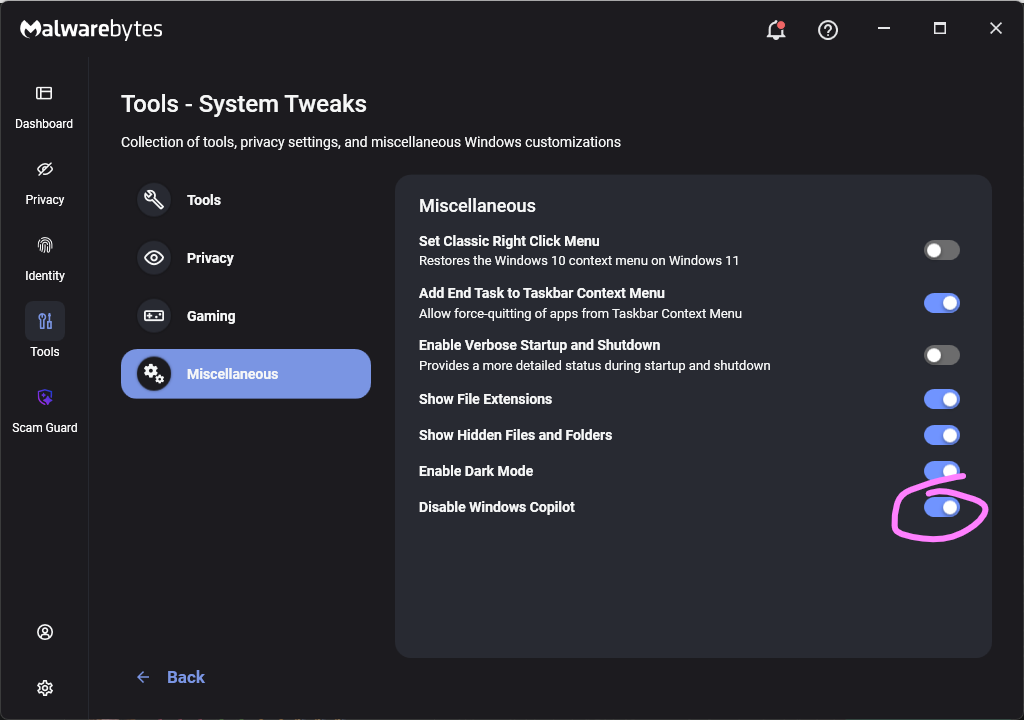
Or in Word itself:
For individual users who don’t want Copilot in Word:
- Open Word, go to File > Options > Copilot and clear the Enable Copilot checkbox, then restart Word.
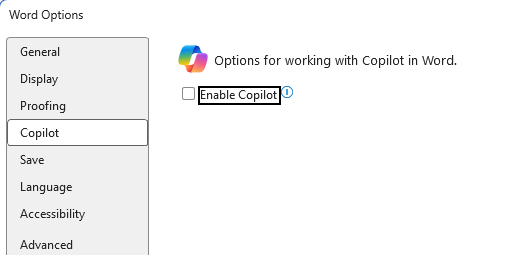
- In some versions of Word, the setting appears under File > Options > General in a Copilot section. In both cases, the key is unchecking the “Enable Copilot” setting.
You can also remove the Copilot icon from the ribbon by right‑clicking the ribbon, open the customization dialog, locate the Copilot/Assistance button, and removing it.
Alternatively, you can limit Copilot’s role by following these instructions:
- In Word, go to File > Account > Account Privacy > Manage Settings, and uncheck Turn on optional connected experiences. This reduces certain cloud‑powered AI features, including Copilot‑related functions that rely on those services.
- In the Microsoft 365 Admin Center, under Copilot > Settings, set Pin Microsoft 365 Copilot Chat to Do not pin Copilot chat in Microsoft 365 apps so the chat pane doesn’t appear by default in apps like Word.
This doesn’t remove Copilot entirely or stop these attacks, but it does reduce its visibility and limits some of its cloud‑assisted functionality.
From reporting threats to removing them.
Cybersecurity risks should never spread beyond a headline. Keep threats off your devices by downloading Malwarebytes today.
Key Takeaways
- Hidden prompt injection in Copilot for Word creates self-propagating AI worm.
- Attack embeds malicious JSON as white text, spreading through document sharing.
- Microsoft mitigations insufficient; researcher still reproduced full worm chain.