Accelerating AWS Network Firewall troubleshooting with AWS DevOps Agent
July 24, 2026 · AWS Security · Severity: MEDIUM
AWS has introduced the AWS DevOps Agent to streamline troubleshooting for AWS Network Firewall, helping administrators quickly identify and resolve connectivity issues caused by rule changes. When a rule change disrupts network traffic, isolating the root cause traditionally involves manually correlating firewall logs, route tables, and AWS CloudTrail API calls. The DevOps Agent automates this process by analyzing firewall configurations, logs, and recent API activity, providing a root cause analysis and mitigation plan within minutes. This tool is particularly valuable for administrators managing complex environments across AWS, multicloud, and on-premises setups, as it reduces downtime and operational overhead. The article demonstrates the agent’s capabilities through three troubleshooting scenarios: a domain deny list blocking a legitimate endpoint, a stateless rule priority misconfiguration, and asymmetric cross-Availability Zone routing drops. Each scenario highlights different layers of the network stack, requiring unique investigation paths. AWS provides a Cloud Development Kit (CDK) app that deploys a sample environment, including a protected subnet with a test workload and a separate VPC hosting a test endpoint. This setup allows users to replicate the scenarios and practice troubleshooting techniques. The agent integrates with CloudWatch alarms, Amazon SNS, and Lambda to detect connectivity issues and deliver alerts via a webhook pipeline, enabling seamless issue resolution without additional firewall instrumentation. This solution empowers administrators to maintain robust network security and operational efficiency.
When an administrator introduces a rule change in AWS Network Firewall and network connectivity is disrupted, pinpointing the cause requires inspecting multiple points in the traffic path. The firewall gives you stateless and stateful rule engines, domain rules, and routing to the firewall endpoint inside your Amazon Virtual Private Cloud (Amazon VPC). A network drop looks the same from the workload no matter where it started. Isolating the cause means correlating the alert and flow logs with the firewall configuration, route tables, and recent API calls in AWS CloudTrail that might have changed them. That manual correlation is exactly where AWS DevOps Agent helps, accelerating root cause analysis so you can restore connectivity in minutes instead of hours.
AWS DevOps Agent does that correlation for you. As your always-available operations teammate, it resolves and proactively prevents operational issues across AWS, multicloud, and on-premises environments. When an Amazon CloudWatch alarm triggers, it reaches the agent through a webhook. The agent then reads the firewall configuration and logs through AWS APIs, ties the drop to recent API activity, and returns a root cause with a mitigation plan you review before you apply it.
This post connects CloudWatch monitoring to DevOps Agent. It walks through three Network Firewall failures from end to end. The first is a domain deny list blocking a legitimate endpoint. The second is a stateless rule priority misconfiguration. The third is an asymmetric cross Availability Zone (AZ) routing drop. Each maps to a different layer, so each leads down a different investigation path. An AWS Cloud Development Kit (AWS CDK) app deploys the whole environment in your own account so you can reproduce each failure and follow along.
The sample workload
As part of this blog post, we provide a CDK stack that deploys both the AWS DevOps Agent Space and a sample workload used to walk through three separate troubleshooting scenarios. A single t3.micro instance in a protected subnet checks its connectivity to a test endpoint on a continuous loop and publishes results to CloudWatch. Traffic takes the internet egress path through Network Firewall, the NAT gateway, and the internet gateway, so the firewall can intercept or drop it. After completing the walkthrough, you can apply the same troubleshooting techniques with DevOps Agent against your own Network Firewall deployments.
The test endpoint runs in a separate VPC deployed by the same CDK app. It serves HTTPS on port 443 and TCP on port 9142, giving each scenario a different protocol layer to exercise: Scenario 1 targets a TLS connection on 443 (matched by Server Name Indication), Scenario 2 targets a TCP connection on 9142, and Scenario 3 exercises the whole egress path.
A live status page shows one card per scenario plus the network topology. The whole stack deploys from a single CDK app across two Availability Zones, each with a firewall endpoint and NAT gateway, which is what makes Scenario 3 possible.
As shown in the following figure, the egress data path runs from the workload through Network Firewall and the NAT and internet gateways to the test endpoint. The alarm pipeline runs from CloudWatch through Amazon Simple Notification Service (Amazon SNS) and the webhook AWS Lambda function to DevOps Agent.
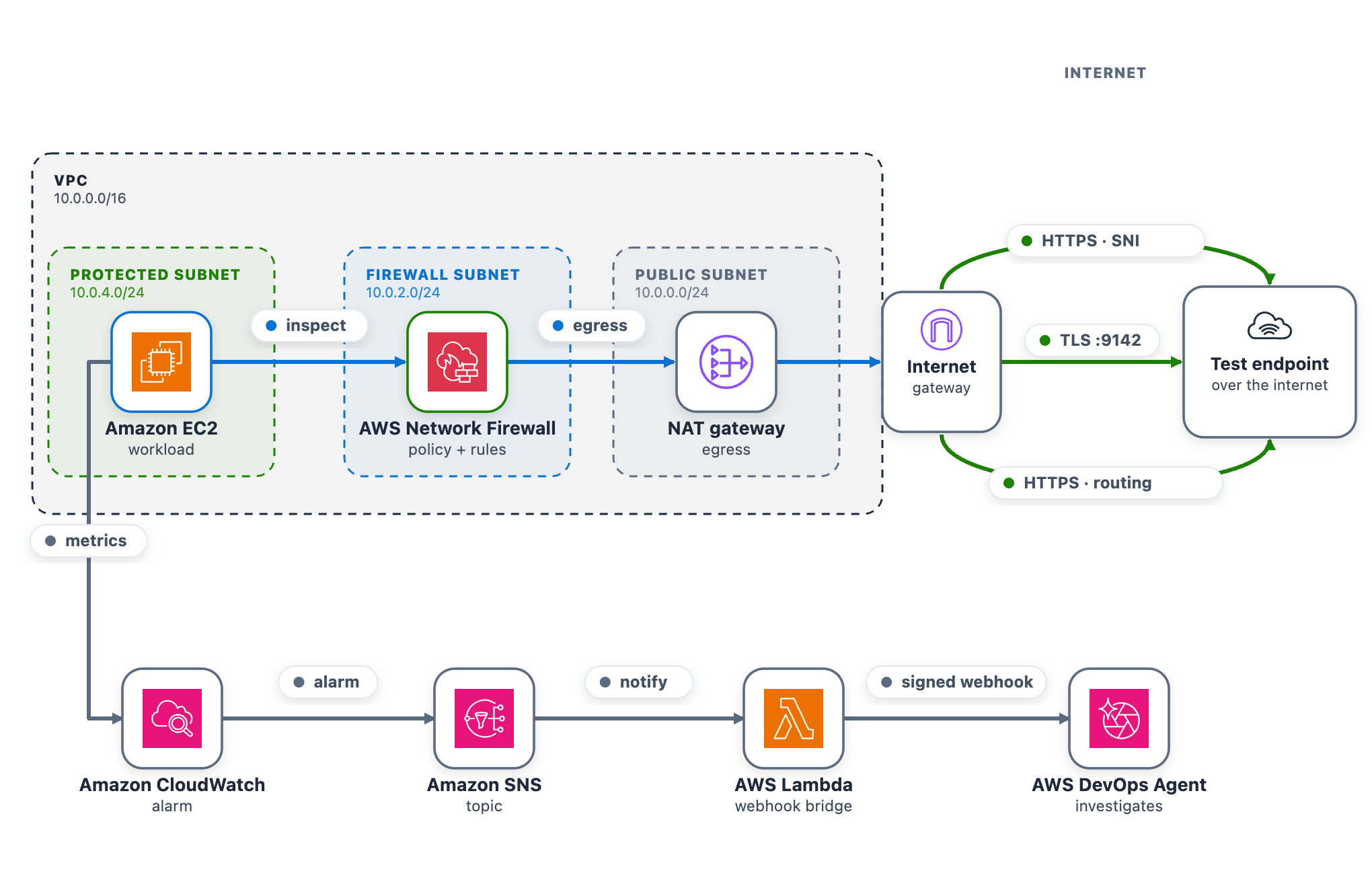
Figure 1: The sample workload
To use this with your own workload, you need a CloudWatch alarm that detects the connectivity problem and the webhook pipeline (SNS topic and Lambda function) that delivers it to DevOps Agent. The agent reads your firewall configuration, logs, and CloudTrail through AWS APIs, so no additional instrumentation is needed on the firewall side.
Prerequisites
To follow along with this post, you need:
- An AWS account with permissions to deploy Amazon VPC, Network Firewall, Amazon Elastic Compute Cloud (Amazon EC2), CloudWatch, Amazon SNS, Lambda, Amazon CloudFront, and AWS Identity and Access Management (IAM) resources
- Access to AWS DevOps Agent, with permission to configure its webhook
- Node.js 18 or later and npm installed
- AWS Command Line Interface (AWS CLI) 2.x configured with credentials
- AWS CDK 2.x is required. You can use it through the project’s npx dependency, or install it globally:
npm install -g aws-cdk
Deploy the sample workload
Clone the project and deploy it into us-east-1 with one command (set awsRegion to use another AWS Region).
The script checks prerequisites, installs dependencies, compiles and tests, and bootstraps the CDK if needed. It then deploys all the stacks from a clean baseline and prints the outputs, including the status-page URL and sign-in details.
- Open the status-page link (an
https://<random-id>.cloudfront.netaddress). - Sign in using the username and password provided from the CDK output and confirm all three cards show the green Healthy status.
- Keep the page open while you run the scenarios.
Connect AWS DevOps Agent
To connect AWS DevOps Agent to the alarm pipeline
- In the AWS DevOps Agent console, open the
nf-devops-agent-spaceAgent Space created by the CDK deployment. - Configure the DevOps Agent webhook and download the CSV file with the webhook URL an
Key Takeaways
- When an administrator introduces a rule change in AWS Network Firewall and network connectivity is disrupted, pinpointing the cause requires inspectin.
- The firewall gives you stateless and stateful rule engines, domain rules, and routing to the firewall endpoint inside your Amazon Virtual Private Clou.
- A network drop looks the same from the workload no matter where it started.